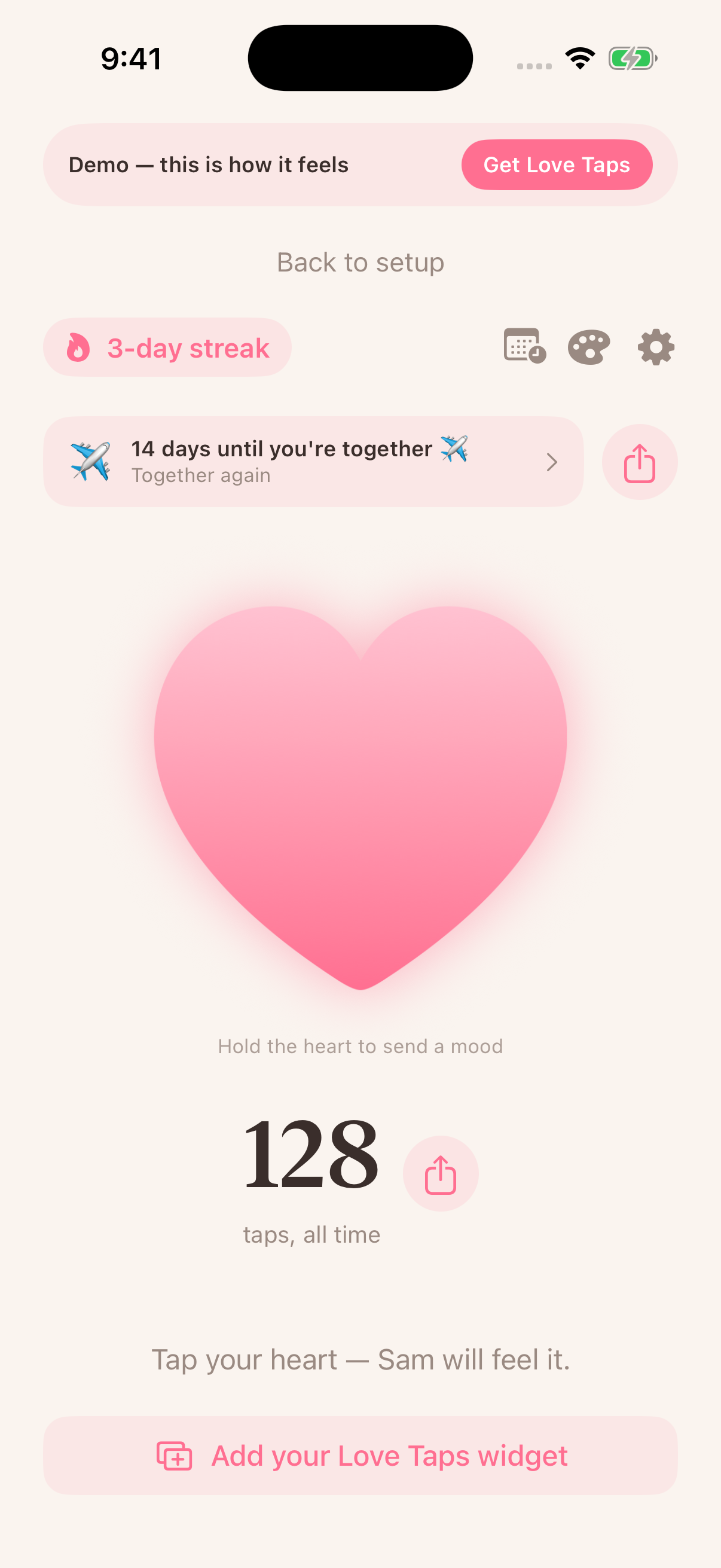
Before adding the widget
Install and open Love Taps on both iPhones. The app requires iOS 17 or later. Follow the in-app pairing flow, choose a paid plan on one phone and invite your partner. Finish pairing before testing the widget.
Add it to your Home Screen
- Hold an empty part of the Home Screen until the icons move.
- Open Edit, then Add Widget. On some iOS versions, use the plus button.
- Search for Love Taps, choose an available widget and add it.
- Place it where you want it and finish editing.
Add it to your Lock Screen
- Hold your unlocked Lock Screen and choose Customize, then the Lock Screen.
- Tap the widget area and choose Love Taps. Remove another widget if you need room.
- Add the widget, close the picker and save your changes.
Menu labels can vary by iOS version. See Apple’s widget instructions for the system controls.
Send a test tap together
Open Love Taps on both phones and confirm you are paired. Send one tap, check the receiving phone, then try the widget. This helps separate a pairing problem from a widget or notification setting.
If Love Taps does not appear in the widget picker
Open the app once after installation, return to the picker and search again. Confirm the app and iOS are updated. If it remains missing, restart the iPhone and try again.
If a tap arrives without a sound
Check Settings → Notifications → Love Taps on the receiving phone. Review notification permissions, sound and the active Focus configuration. Also check connectivity. Notification timing and sound depend on these settings.
Contact [email protected] with your iOS version and what happened. Never send your Apple ID password or payment details.
Find Love Taps on the App Store
By Love Taps · Updated September 10, 2026